
A Step-by-Step Guide to Installing Home Wi-Fi Networks


Introduction to Home Wi-Fi Installation
Creating a reliable home Wi-Fi network is essential in today's connected world. Whether you're working from home, streaming your favorite shows, or connecting smart home devices, a strong and secure Wi-Fi network is a must. This guide will walk you through the steps to set up your home Wi-Fi network efficiently.
Before you begin, ensure you have all the necessary equipment, including a modem, router, and necessary cables. Most internet service providers (ISPs) supply a modem, but you may choose to purchase your own for enhanced performance. Let's dive into the step-by-step process of setting up your home Wi-Fi network.
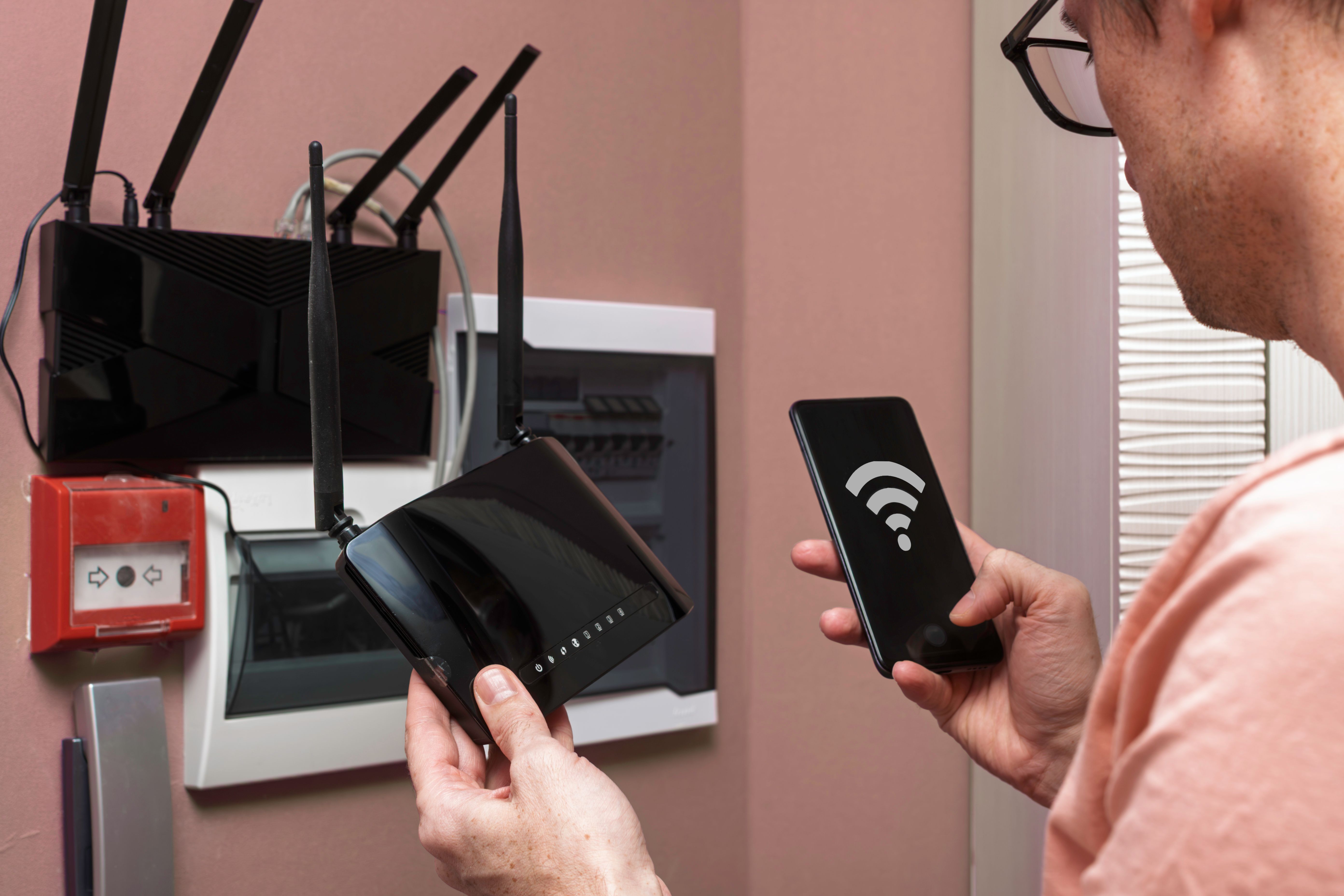
Step 1: Connect Your Modem
First, connect your modem to a power source and link it to your home's internet connection using the cable provided by your ISP. Wait for the modem to fully power up and establish a connection, indicated by the LED lights stabilizing.
Choosing the Right Location
Position your modem in a central location in your home. This ensures optimal distribution of the Wi-Fi signal. Avoid placing it near thick walls or electronic devices that may cause interference.
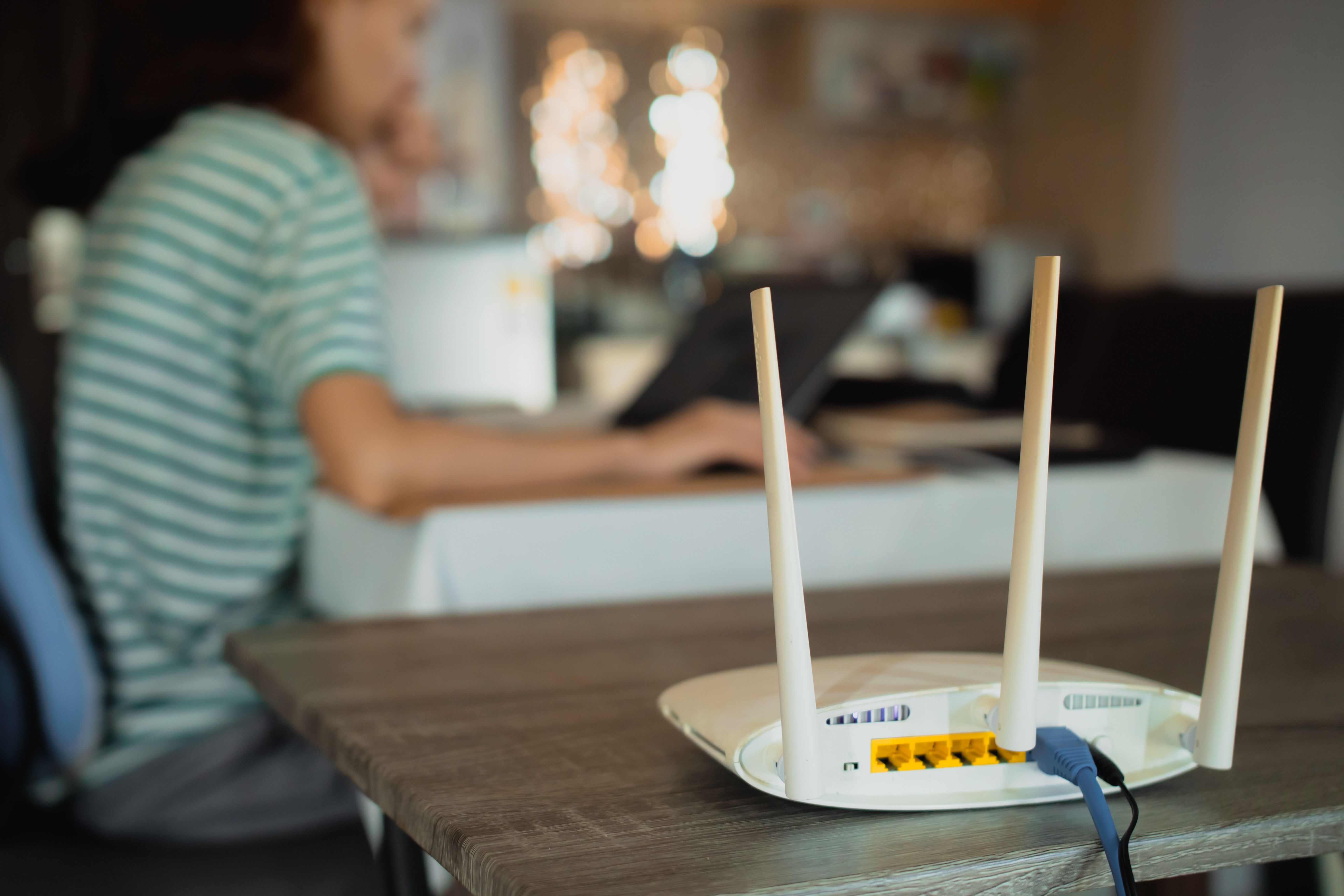
Step 2: Set Up Your Router
Next, connect your router to the modem using an Ethernet cable. Plug one end into the modem's Ethernet port and the other into the router's WAN port. Power on the router and wait for it to establish a connection.
Configuring Your Router
Access your router's settings by typing its IP address into a web browser. Common addresses include 192.168.1.1 or 192.168.0.1. Refer to the router's manual for the exact address and login credentials. Once logged in, change the default network name (SSID) and password to something unique and secure.
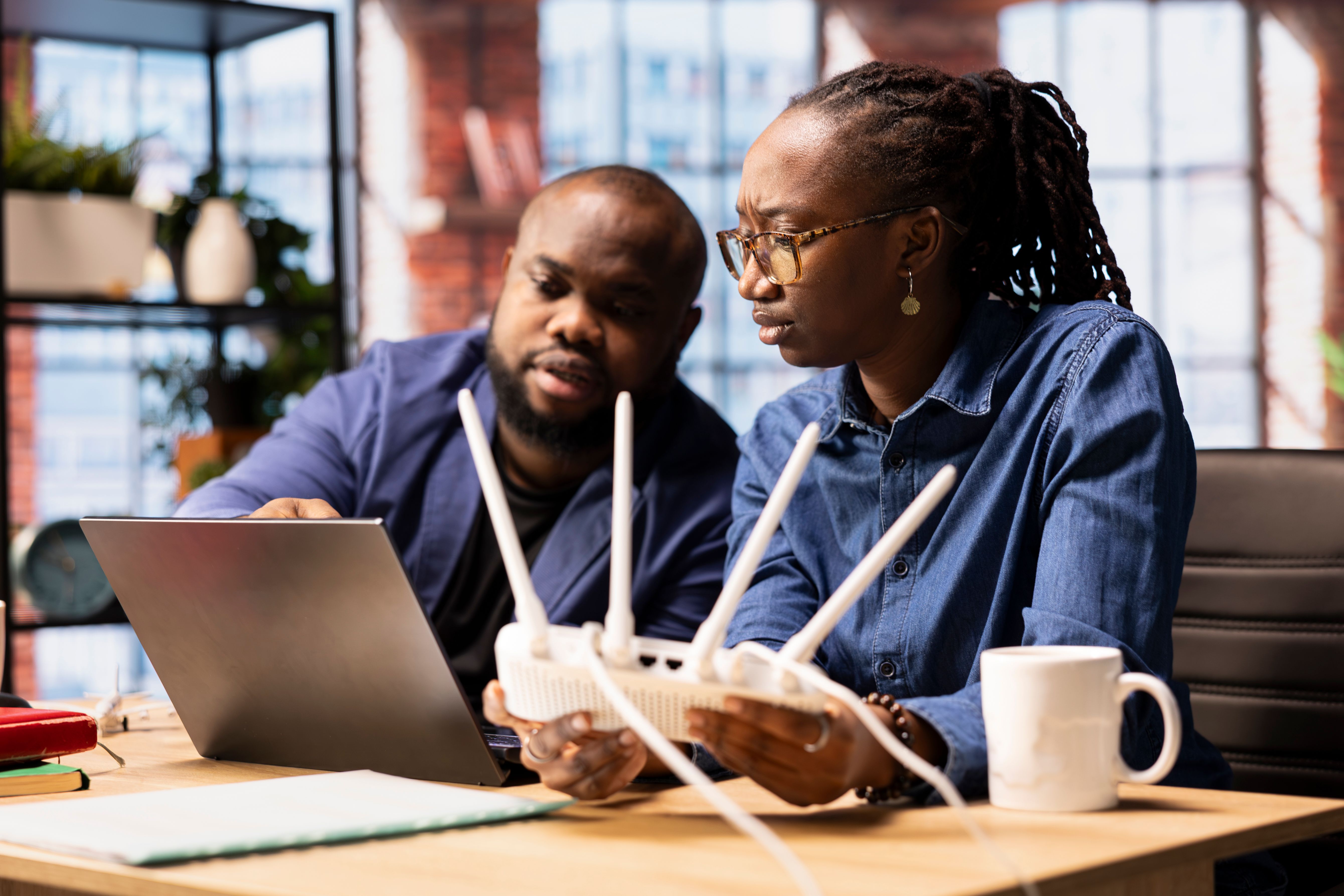
Step 3: Secure Your Network
Security is a critical aspect of your Wi-Fi setup. Enable WPA3 encryption, if available, for the highest level of security. If not, WPA2 will suffice. Avoid using easily guessed passwords; opt for a mix of letters, numbers, and symbols.
Additional Security Measures
Consider disabling remote management and WPS (Wi-Fi Protected Setup) features to minimize vulnerabilities. Regularly update your router's firmware to protect against potential security threats.

Step 4: Test Your Connection
Once your network is set up, test the connection using various devices. Ensure you have a strong signal throughout your home. If you encounter dead zones, consider using Wi-Fi extenders or mesh systems to enhance coverage.
Troubleshooting Common Issues
If you experience connectivity issues, try restarting your modem and router. Check for firmware updates and verify your cable connections. If problems persist, contact your ISP for assistance.
By following these steps, you can establish a robust and secure home Wi-Fi network, providing seamless connectivity for all your devices. Enjoy the freedom and convenience of wireless internet throughout your home!